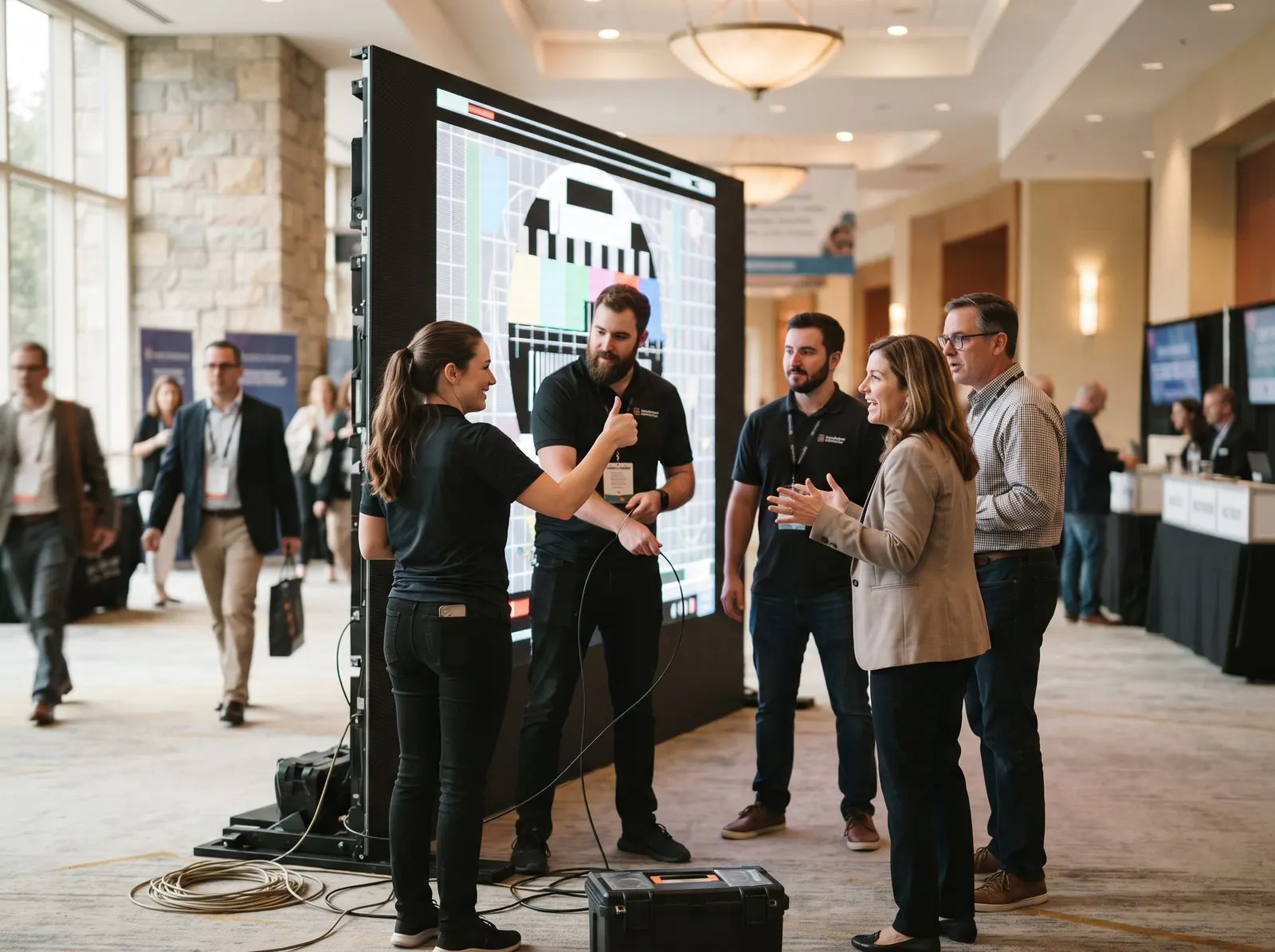
- Decide early whether every photo needs approval before it goes on screen.
- Use a screen or projector that can open a web page, and stop it going to sleep.
- Put the QR code on the screen itself, on signs, and in the event app or agenda.
- Give people a reason to post: photo challenges and a shout-out from stage.
Two to four weeks before
- ☐ Create the event and set the slideshow options: speed, names, videos, and whether to show the QR code on screen.
- ☐ Decide on moderation. For public-facing screens, turn on approval so a person checks each photo first.
- ☐ Add your logo and brand colour if you want the wall to match the event.
- ☐ Add a photo-use notice if photos may appear in marketing, so attendees agree before they upload.
- ☐ Write 5 to 10 photo challenges (“Your best booth selfie”, “Someone you just met”).
- ☐ Order signs and table cards with the QR code, and add the link to the agenda or event app.
- ☐ Invite a co-host who can approve photos during the event.
Screen and connection
- ☐ A screen, TV or projector with a computer or streaming stick that runs a web browser.
- ☐ An HDMI cable and power at the screen location.
- ☐ Wired internet or reliable Wi-Fi for the screen.
- ☐ Sleep, screensaver and notifications turned off on the computer.
- ☐ The slideshow open full screen, tested at the venue the day before.
On the screen’s browser, go to sharefetti.com/tv and enter the 4-digit code from your slideshow settings. The wall starts playing and updates as new photos are shared. No account needs to be signed in on the venue computer.
On the day
- ☐ Check the screen is on and playing before doors open.
- ☐ Put a test photo up so the wall isn’t empty when people arrive.
- ☐ Ask the host or MC to mention the wall in the opening remarks.
- ☐ Keep someone on approvals during busy times (breaks, lunch, the reception).
- ☐ Announce challenge winners on stage or in the closing remarks.
Keeping the wall appropriate
For most conferences, approval before display is the safest choice: attendees can share freely, and nothing reaches the big screen until someone on your team taps approve. You can hide any photo from the wall and gallery at any time.
- Nothing unexpected on a public screen
- Remove photos at any time
- Attendees can report photos of themselves
- Someone needs to watch the queue
- Approval adds a short delay before photos appear
After the event
- ☐ Download all approved photos in original quality for your marketing team.
- ☐ Send attendees the gallery link in your thank-you email.
- ☐ Keep the gallery open long enough for late uploads, then archive it.
A photo wall without the AV headache
Sharefetti’s live slideshow runs in any browser, with approval before display, photo challenges and co-hosts. Business adds your logo and colours: $149 CAD / $109 USD per event.
Frequently asked questions
What do I need for a live photo wall?
A screen or projector, a computer or streaming device with a web browser, an internet connection, and a QR code for attendees to scan.
Can I approve photos before they show on screen?
Yes. Turn on approval and photos wait in a queue until a host or co-host approves them.
How do attendees add photos?
They scan the QR code on a sign or on the screen, type their name, and choose photos from their phone. No app or account.
Can the photo wall show our branding?
With the Business plan you can add your logo and brand colour to the gallery and slideshow.
Written by the Sharefetti team. We build QR code photo sharing for weddings, birthdays and company events, and we test every tip at real events.